What is Flow AI Video?
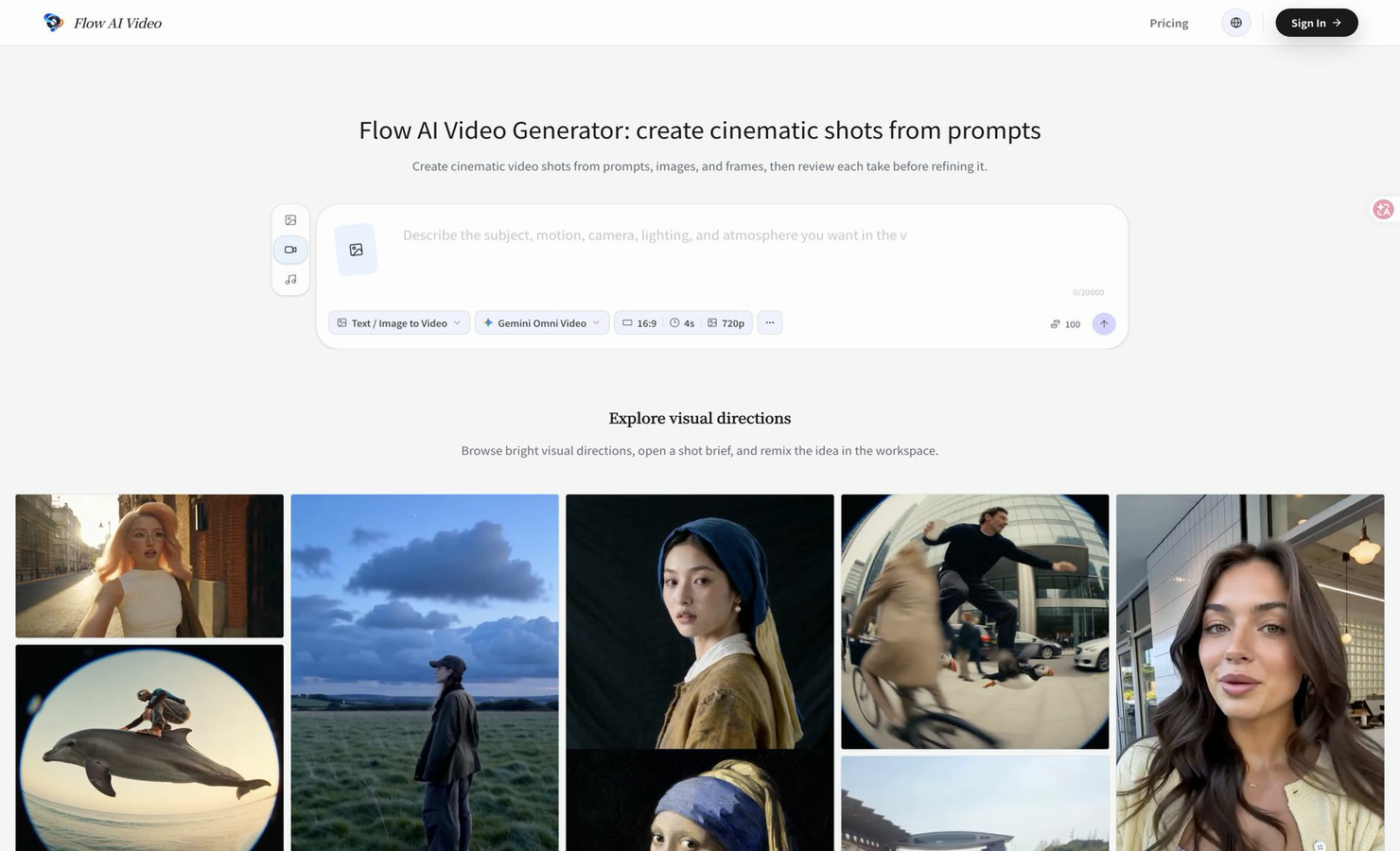
Flow AI Video is an AI video generator online that creates short cinematic shots from prompts, still images and frame references. You pick a video model, aspect ratio and output settings, describe the shot or upload media, and get a take back. The site presents each result as a draft to check, not a finished clip.
What sets Flow AI is its review-first workflow. You look at camera movement, composition, identity details and continuity in each take, then change one variable at a time for the next pass. Depending on the account and mode, the model picker can include Veo 3.1, Kling 3.0, Seedance, Gemini Omni Video and Grok Imagine. Generations use credits, and you see a cost estimate before you submit.
Who it's for
- Content creators making short clips
- Marketing teams producing product videos
- Visual planners building storyboards
- Creative teams testing campaign ideas
How to use Flow AI Video
- 1
Set the shot
Choose a video mode, a model, an aspect ratio and any other available settings that suit where the clip will be used.
- 2
Describe or add media
Write a shot brief naming the subject, action, setting, camera move and mood, or add a still image, first or last frame, or other reference.
- 3
Generate and review
Check the credit estimate, submit, then watch the take for camera movement, composition and continuity.
- 4
Refine or keep the take
Change one prompt, input or model setting for the next version, or save a useful clip to your library to download later.
Flow AI Video key features
Text-to-video shots
Turns a plain-language prompt describing subject, setting, action, camera and mood into a short video shot.
Image-to-video motion
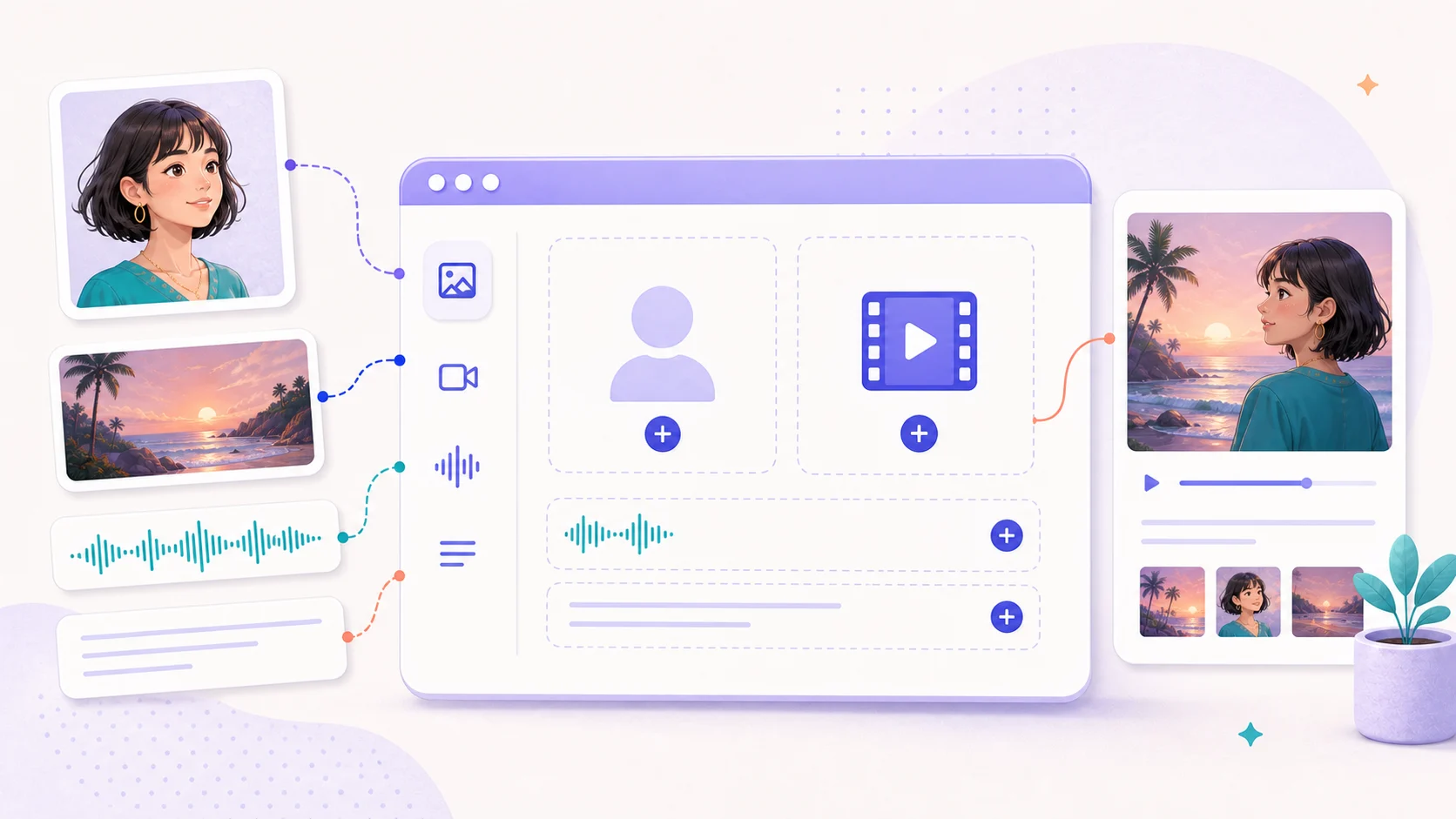
A still image can serve as the opening frame while the prompt sets the camera move, timing or change. The output may reinterpret the source.
Frame and reference guidance
First frames, last frames and other references help keep the subject, composition or overall look closer to the intended idea.
Multiple AI video models
Depending on account and mode, the picker can offer Veo 3.1 Fast and Pro, Kling 3.0, Seedance, Gemini Omni Video and Grok Imagine, plus Nano Banana models for image-led preparation.
Format selection
Choose an available aspect ratio and output setting for a social feed, a product presentation or a storyboard.
Clip history and library
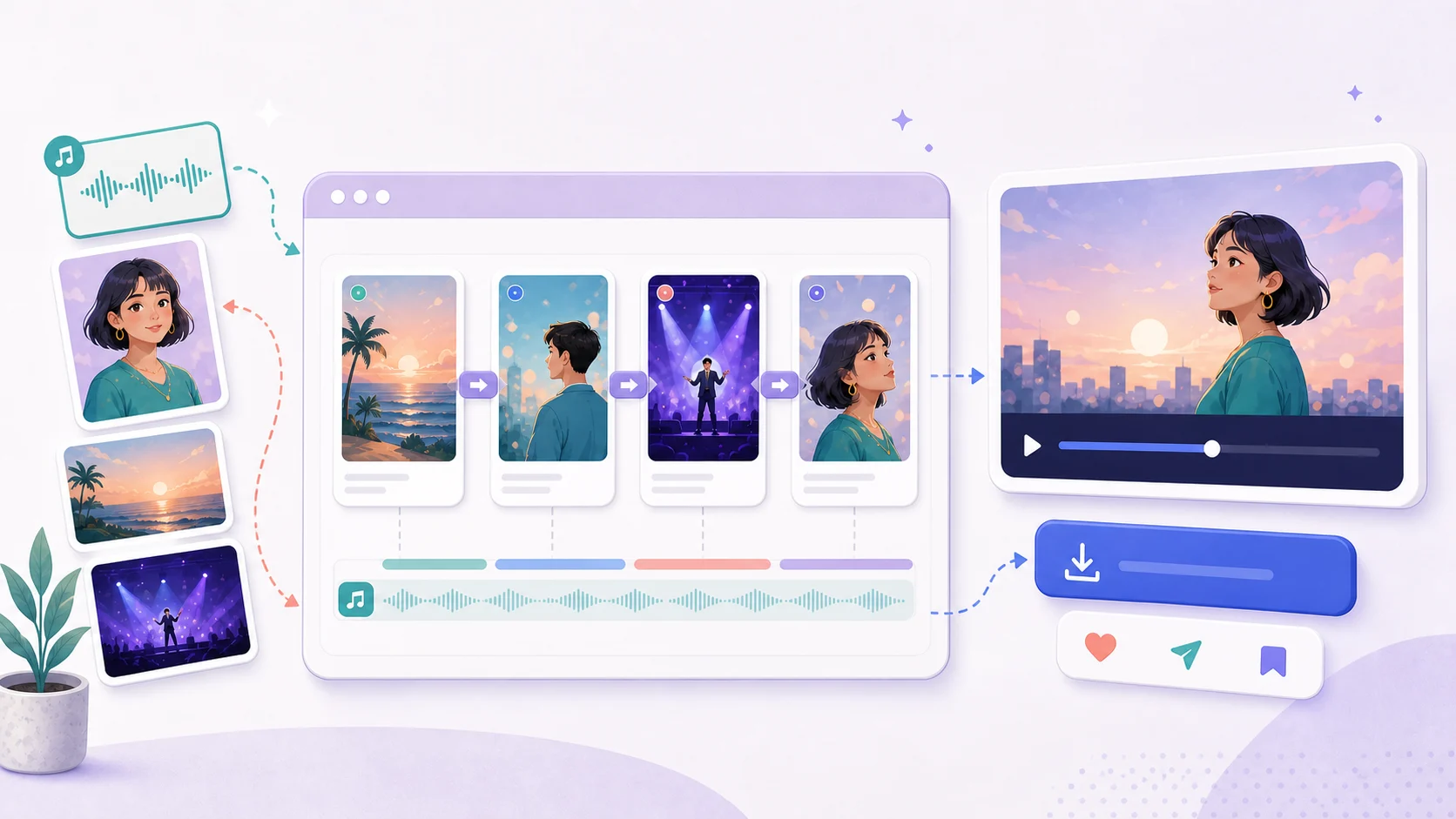
Generated clips are linked to your account history, so you can review, download or reuse a take as the starting point for the next version.
Flow AI Video use cases
Short social clips
Creators can draft vertical or square shots from a prompt and try several takes before choosing one to edit.
Product video drafts
Marketing teams can animate a product still with image-to-video and test camera moves before a full production.
Storyboards and scene planning
Visual planners can turn shot ideas into rough motion drafts to check composition and continuity early.
Campaign concept tests
Creative teams can compare takes across models and settings to see which direction to develop further.
How Flow AI Video is built
Flow AI Video runs on the ShipAny TanStack template. Its sign-in, credit-based generation, recurring subscriptions and one-time credit packs fit the authentication, payments, subscription and credit systems that ShipAny provides ready-made.
View the ShipAny TanStack templateFlow AI Video FAQ
What is Flow AI Video?
Flow AI Video is a browser-based AI video generator that turns text prompts, still images, frame references and other supported media into short cinematic video drafts, which you review before iterating.
Is Flow AI Video free?
Generations use credits, and the cost depends on the model and settings you choose. The pricing page lists recurring subscriptions and one-time credit packs. The pages reviewed do not describe a free tier.
How do I make text-to-video shots with Flow AI Video?
Choose a model and output settings, then write a prompt that names the subject, action, setting, camera movement and mood. Generate a take, review it, and adjust one detail for the next pass.
Can I use image-to-video in Flow AI Video?
Yes. Add a still image, a first or last frame, or another supported reference, then describe the camera move, timing or transformation you want. The model may reinterpret the source instead of keeping every pixel.
Which AI video models does Flow AI Video support?
Depending on your account and mode, the picker may include Veo 3.1 Fast, Veo 3.1 Pro, Kling 3.0, Seedance, Gemini Omni Video and Grok Imagine for video, plus Nano Banana models for image work.
Will the generated video match my prompt exactly?
Not always. Identity details, text, logos, timing, camera motion and continuity can change between takes, so check each result before you use it.
This introduction is based on the public pages of flowaivid.com, read on October 9, 2026.