
What is Magic Eraser?
Magic Eraser is an AI photo editor available through a browser and native apps for iPhone, iPad, and Android. It brings object removal, background editing, and photo enhancement into one workflow for portraits, product shots, and other images. Users can brush over unwanted elements, separate subjects from backgrounds, or improve a photo’s sharpness and color. Its tools also support reconstructing selected areas and extending an image beyond its original borders.
The platform combines corrective editing with creative tools. Generative fill rebuilds missing areas, image expansion adds surrounding content, and text prompts can produce new visuals. Background edits can use solid colors, custom images, gradients, or transparency. Alongside the AI editor, the site provides browser utilities for resizing, compressing, cropping, converting files, and extracting colors. These utilities run locally in the browser, giving users a separate option for routine image preparation.
Who it's for
- Online sellers preparing product photos
- Social media creators
- Photographers editing portraits and travel shots
- Designers and marketing teams
How to use Magic Eraser
- 1
Open the editor and choose a photo
Use the web editor in a modern browser or open a supported mobile app. On the web, upload the image to edit; sign in to access limited free edits.
- 2
Choose the editing task
Select object removal, background removal, enhancement, or another AI tool according to the change needed.
- 3
Mark or adjust the image
For object removal, brush over the unwanted area. Adjust the brush size or make additional passes to refine the result. For background editing, choose transparency or a replacement background.
- 4
Review and export
Check the edited image before exporting. Use PNG with transparency when a background-free cutout is needed.


Magic Eraser key features
Object removal
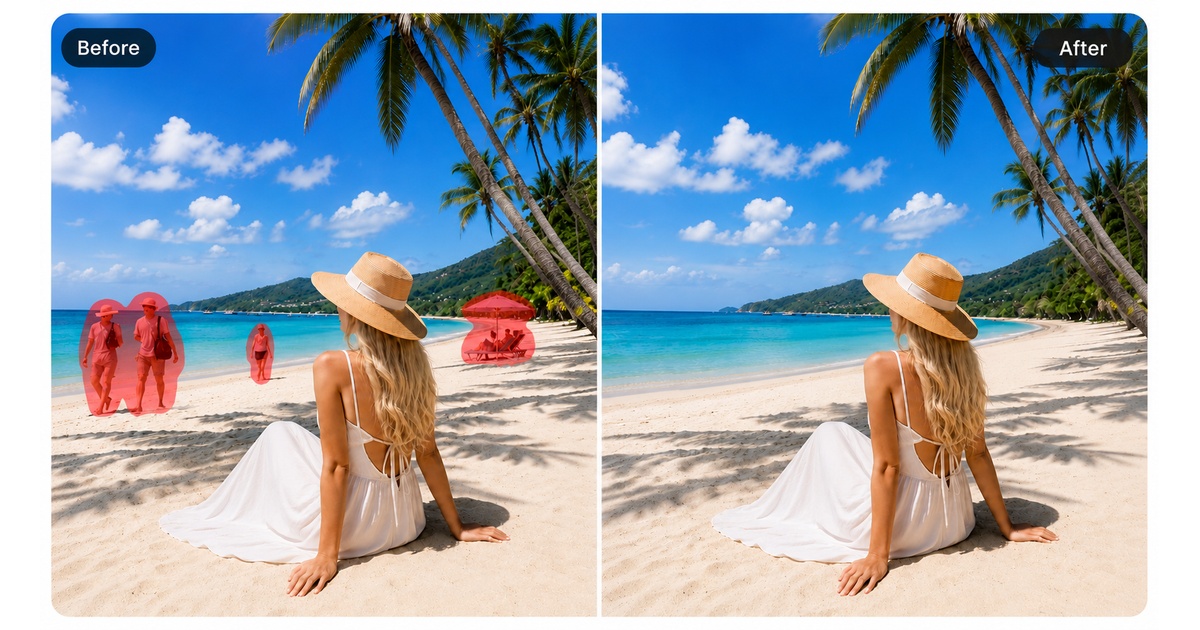
Users brush over unwanted people, text, or objects, and AI inpainting reconstructs the selected area using the surrounding image.
AI background remover
The tool separates the main subject from its background. Users can retain transparency or add a solid color, gradient, or custom image.
Photo enhancement
AI Enhance adjusts sharpness, clarity, brightness, and color, with support for improving facial detail and fine textures.
Generative fill and image expansion
AI Fill rebuilds or replaces selected areas. AI Expand generates content beyond the image borders for wider compositions and layouts.
AI photo filters and visual creation
Creative filters apply stylized looks, while AI Create generates images from text prompts. Design tools support social media graphics and marketing materials.
Local browser utilities
Separate browser tools handle resizing, compression, cropping, rotation, collages, file conversion, and color extraction locally.
Magic Eraser use cases
Prepare product listing images
Remove distracting backgrounds from product photos and replace them with white, studio, or lifestyle settings.
Clean up portraits and travel photos
Remove unwanted people, signs, and other distractions, then improve sharpness or brightness where needed.
Adapt images for social posts and banners
Extend tightly cropped photos to fit wider layouts, apply creative filters, and prepare social media or marketing graphics.
Edit real estate listing photos
Use object removal to clear unwanted visual distractions from property images before preparing a listing gallery.

Magic Eraser FAQ
What is Magic Eraser?
Magic Eraser is an AI photo editor that combines object removal, background editing, enhancement, generative fill, expansion, and creative tools. It is available on the web, iPhone, iPad, and Android.
Is Magic Eraser free?
The site offers limited free editing after sign-in and also provides paid access. Availability and editing limits can differ between the web and mobile apps.
How does object removal work in Magic Eraser?
Brush over the element to remove, and the AI reconstructs the selected area from surrounding image context. Brush size adjustments and additional passes can help refine the result.
How do I use the AI background remover?
The tool automatically separates the main subject from its background. Users can keep the background transparent and export a PNG, or replace it with a color, gradient, or custom image.
What is the difference between generative fill and image expansion?
Generative fill reconstructs or replaces selected areas within an image. Image expansion generates new content beyond the existing borders.
Can Magic Eraser handle photo enhancement and AI photo filters?
AI Enhance improves aspects such as clarity, sharpness, brightness, and color. AI photo filters provide creative styles for changing the image’s appearance.
This introduction is based on the public pages of magiceraser.live, read on October 9, 2026.