
How to Script a Product Demo Video in Six Steps
 brooks wilson
Learn how to script a product demo video in six steps: set one goal, write a Problem / Show / Result script, match each line to a real on-screen action, add captions, and test with a new viewer.
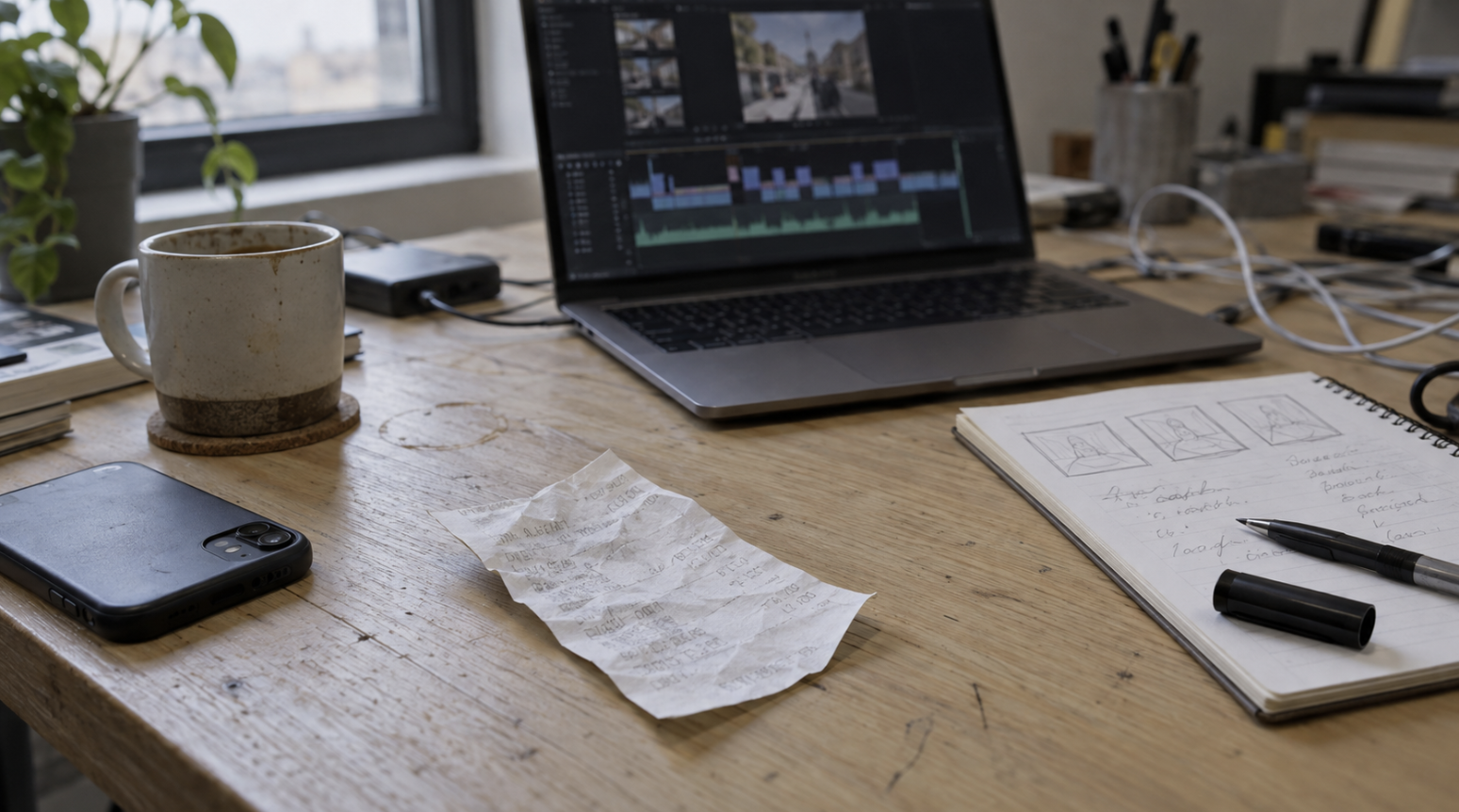
An empty editing timeline gives Priya no clue what to show first. She is the first marketer at a fictional bookkeeping app startup, and her manager wants a 60-second product demo video for next week's receipt-photo feature. The crumpled coffee shop receipt gives her a starting point; she needs a script before she needs an edit.
For this exercise, the app serves freelancers who need to turn receipts into bookkeeping records. Priya will set a goal, write Problem / Show / Result, map the sentences to shots, capture the actions, add captions, and test whether a newcomer understands.
Define the Product Demo Video Goal
Choose what someone needs to understand or do after watching. Priya wants a freelancer to understand how a receipt photo becomes a bookkeeping record. She leaves booking a sales call and exploring the full app outside this video's purpose.
Write the goal above the draft. Use it when deciding what to cut: a line about the company's history has no place unless it helps explain the receipt feature. Leave any line that serves another goal for a separate video.
Write the Problem, Show, Result Script
Start with a crumpled coffee shop receipt. Priya's Problem line introduces the task of recording that expense. Her Show section follows a proposed three-step demonstration: photograph the receipt, review the captured information, then show the saved record. These are planning steps for the fictional example, not verified instructions for a particular app.
Result describes what the viewer can confirm on screen. Use a short working draft:
-
Problem: "You have a receipt to enter into your books."
-
Show: "Photograph it, check the information, and save the record."
-
Result: "The expense now appears in your records."
Read the demo video script aloud with a timer. Leave room for the viewer to see each change. If it exceeds 60 seconds, remove a secondary point or shorten a sentence. Avoid rushing through the action just to keep every line.
Map Each Script Line to a Shot
Priya puts each script sentence beside the evidence it needs. For an AI-assisted production workflow, the tutorial on how to make a product demo video offers a reference for pairing script lines with visuals and checking product accuracy. Use that planning method before deciding how to produce each shot.
Match Each Sentence to Visible Proof
A sentence about capturing a receipt needs the photo action. A sentence about a saved expense needs the resulting record. Plan the visible evidence before adding music or transitions.
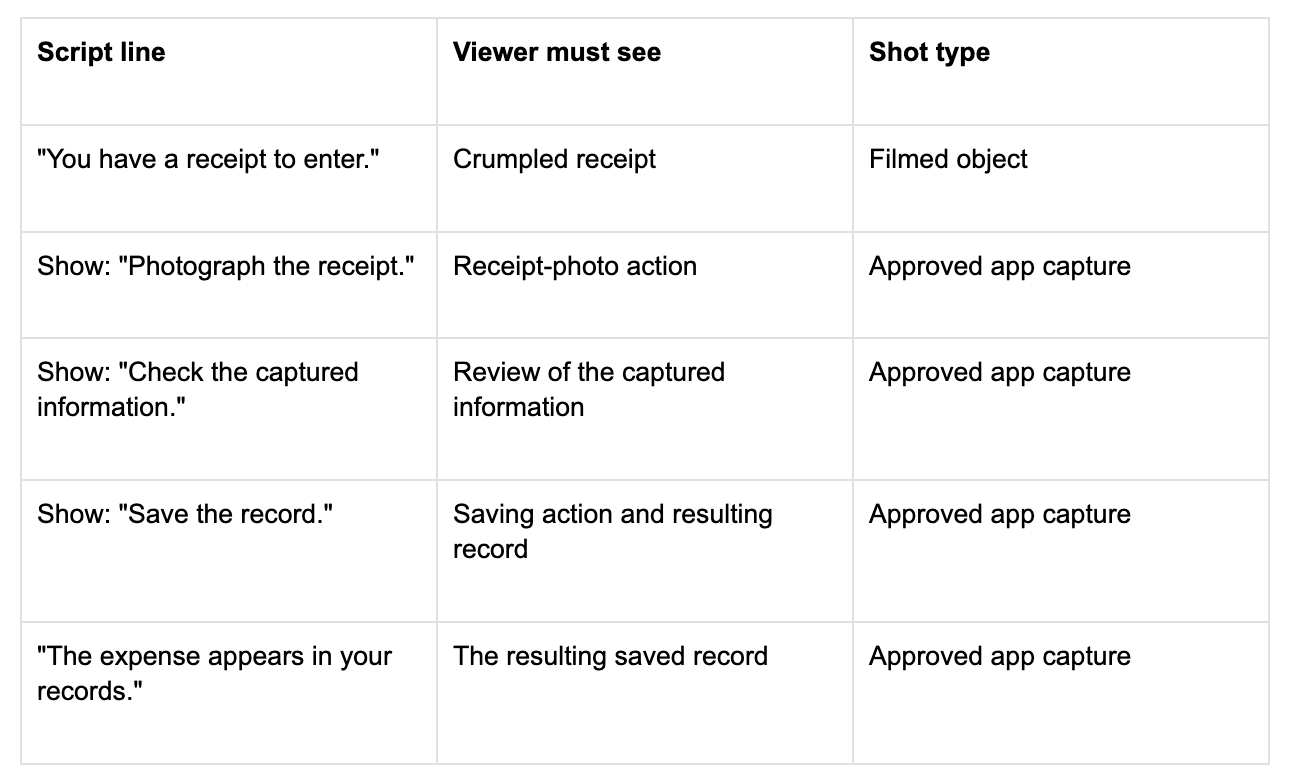
Each Show row pairs a narration line with a shootable action. Rehearse within 60 seconds and adapt the lines to the real product before recording. If a promised action has no corresponding screen to show, revise the promise or remove it. A decorative animation cannot verify a feature.
Choose the Capture Method for Each Shot
Use screen recording to capture the real interface directly from the device. Film the physical receipt when it helps establish the problem. An AI demo video might include a generated background to introduce the situation, but that background supplies no evidence about the app's behavior.
An ordinary camera and editor are enough for the receipt and recorded actions. Choose AI only for a specific supporting image you need. Keep generated interface imitations out of the functional demonstration. Keep the actual product actions visible in the cut.
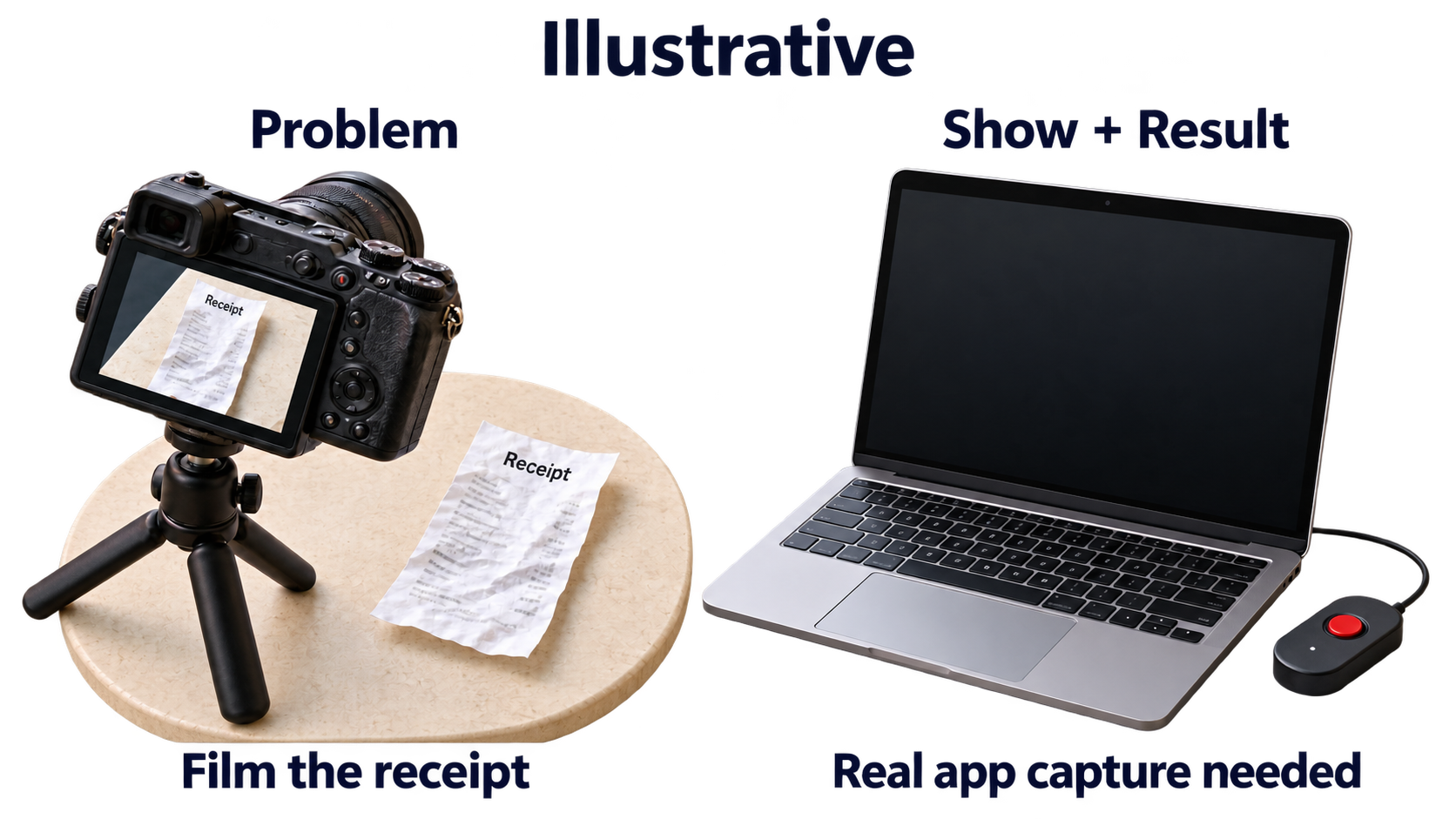
Film the receipt for Problem, then record the real app for Show and Result with an approved demonstration account; the blank screen does not depict a product result.
Capture the App Actions Safely
Prepare an approved demonstration account before recording. Use fictional receipt details and inspect the whole screen for customer names, private amounts, email addresses, or notifications. A sample account still needs checking. Keep real customer material out of the capture.
Priya rehearses the three actions with the team member who knows the feature. That person confirms the actual sequence and what the finished record should look like. If the product behaves differently from the draft, update the script before filming. Do not invent a missing step to preserve a neat story.
Record the actions with pauses where the information changes. Keep the pointer clear of important text. For the physical receipt shot, check that the paper and the relevant details are visible without exposing personal information. Use the same demonstration receipt throughout so the viewer can follow it into the record.
Review the capture before assembling the cut. Watch for an action that happens between shots or a change in sample data. Keep the transition understandable. If a wait is shortened in editing, make the cut clear rather than implying the product completed the task instantly.
Add Captions and Check the Voice
Turn the necessary meaning into captions that follow the action. The receipt shot needs the problem; the product walkthrough video needs clear instructions at the point where each step occurs. The final record needs an explanation of what has changed.
Watch once with the sound off. Someone should still be able to follow the receipt into the saved record. If the captions merely say "Easy" or "Done," replace them with the action or result. Check spelling against the actual interface and keep captions away from important product text.
Then listen without concentrating on the picture. Read the narration in a normal speaking voice. Shorten a sentence if it runs beyond the action it describes. Add a pause when the viewer needs time to inspect a screen; remove another line if that pause takes the cut over 60 seconds.
Software can generate a caption draft, but Priya must check every word against the script and the recording. A transcription error in an action or product label changes the lesson. Export the cut and repeat the muted check on that file, where caption size and placement are easier to judge in context.
Test the Cut With a New Viewer
Ask a colleague or friend who has never seen the app to watch once. Avoid explaining the feature beforehand. Ask them what problem it solves, which actions they saw, and what the final screen shows.
Listen for the point where their account breaks down. If they remember the receipt but cannot explain the saved record, check the transition and the Result line. If they miss the review step, see whether the capture gives it enough time. Revise the relevant shot or sentence, then arrange another viewing without coaching the answer.
In this hypothetical exercise, Priya completes the revision and publishes for the planned launch. She saves the script as a reusable document with space beside each line for its required shot.
For your own product, write three sentences under Problem / Show / Result. Keep them with the visible evidence each sentence needs before opening the editor.