
Dynamic Page Builder
ShipAny supports dynamic page building. You can render a dynamic page with just a JSON file, without writing any code.
Dynamic page files are defined in the src/config/locale/messages/{locale}/pages directory. One file corresponds to one page, and multi-language support is available.
In dynamic page files, landing pages are rendered by combining blocks.
Create a New Dynamic Page
For example, let's create a landing page for AI Image Generator with the access route /features/ai-image-generator. You can quickly create it by following the steps below.
Create the features/ai-image-generator.json file in the src/config/locale/messages/en/pages directory.
Write the page content:
{
  "metadata": {
    "title": "AI Image Generator",
    "description": "Generate images with AI models, support text-to-image and image-to-image."
  },
  "page": {
    "sections": {
      "hero": {
        "title": "AI Image Generator",
        "description": "Generate images with AI models, support text-to-image and image-to-image.",
        "image": {
          "src": "/imgs/features/3.png",
          "alt": "hero image"
        },
        "background_image": {
          "src": "/imgs/bg/tree.jpg",
          "alt": "hero background"
        },
        "buttons": [
          {
            "title": "Start Creating",
            "url": "#create",
            "icon": "Sparkles"
          }
        ]
      }
    }
  }
}Add the newly created dynamic page file to the localeMessagesPaths array exported from the src/config/locale/index.ts file:
export const localeMessagesPaths = [
  // ... other dynamic page file list
  'pages/features/ai-image-generator',
];When you visit the /features/ai-image-generator page, you'll see:
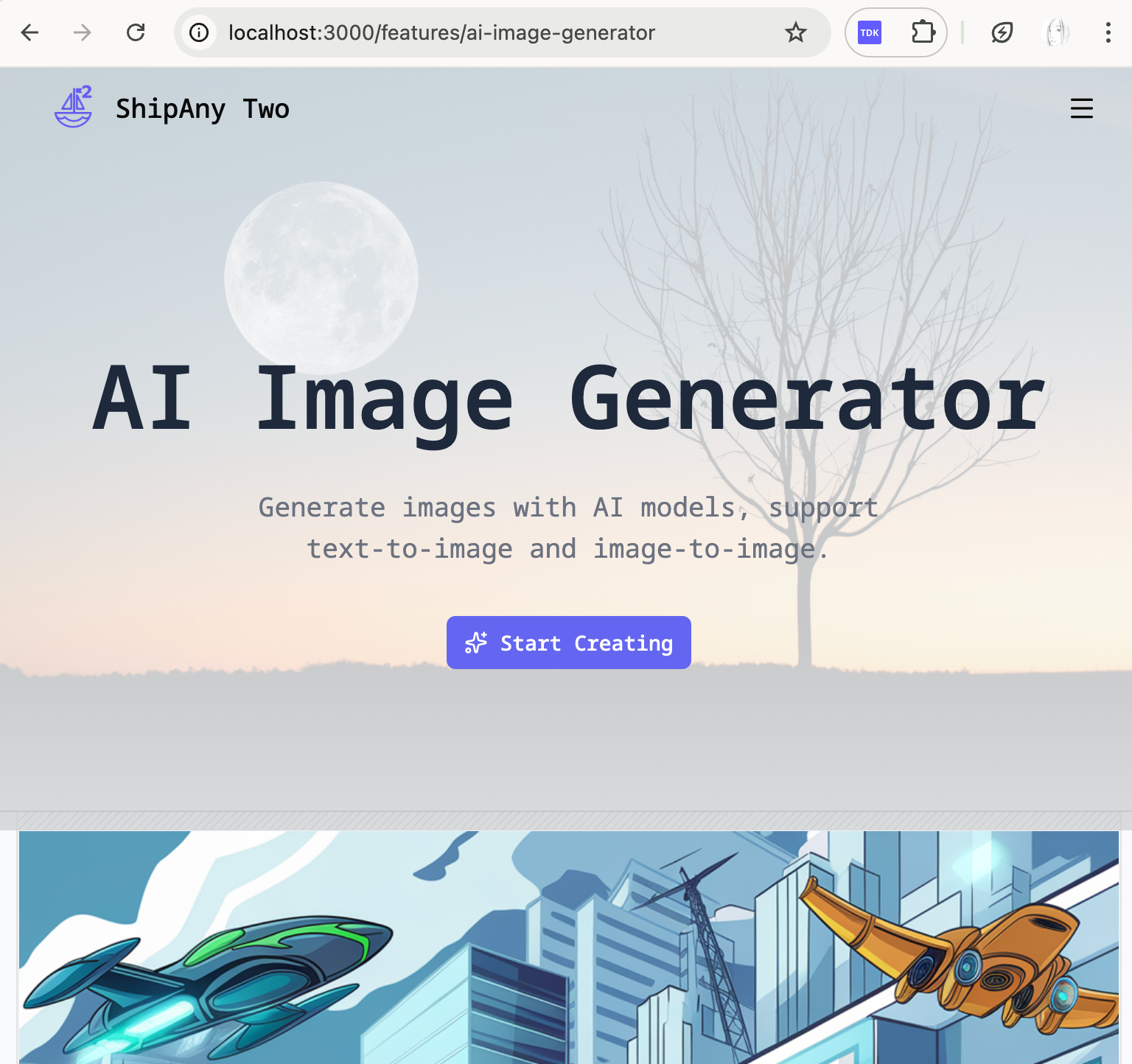
We've rendered a dynamic page with just a JSON file, without writing any code.
If your project needs to support multi-language access to dynamic pages, you need to create corresponding dynamic page files for each language in the src/config/locale/messages/{locale}/pages directory.
For example, for the page created above, to display a Chinese page with the access route /zh/features/ai-image-generator, you need to create the features/ai-image-generator.json file in the src/config/locale/messages/zh/pages directory.
Write the same structure as the English page file, but translate the content into the corresponding language.
The
localeMessagesPathsarray exported fromsrc/config/locale/index.tsdoes not need to add corresponding dynamic page files for each language.
Add Display Blocks
In the JSON file of a dynamic page, metadata defines the page title and description to be displayed in the browser title bar and search engines. Properly setting the title and description in metadata can help search engines better understand and index newly created pages.
The page.sections field defines the list of blocks to be displayed on the page. For example, if we want to display three blocks (hero / faq / cta) on the ai-image-generator page, we can configure it as follows:
{
  "metadata": {
    "title": "AI Image Generator",
    "description": "Generate images with AI models, support text-to-image and image-to-image."
  },
  "page": {
    "sections": {
      "hero": {
        "title": "AI Image Generator",
        "description": "Generate images with AI models, support text-to-image and image-to-image.",
        "buttons": [
          {
            "title": "Start Creating",
            "url": "#create",
            "icon": "Sparkles"
          }
        ],
        "show_bg": false
      },
      "faq": {
        "title": "FAQ",
        "description": "Frequently Asked Questions",
        "items": [
          {
            "title": "What is AI Image Generator?",
            "description": "AI Image Generator is a tool that allows you to generate images with AI models, support text-to-image and image-to-image."
          }
        ]
      },
      "cta": {
        "title": "Ready to Create Images?",
        "description": "Start creating images with AI models, support text-to-image and image-to-image.",
        "buttons": [
          {
            "title": "Start Creating",
            "url": "#create",
            "icon": "Sparkles"
          }
        ],
        "className": "bg-muted"
      }
    }
  }
}
When you visit the /features/ai-image-generator page, you'll see:

Block Type Definition
In dynamic page files, the list of blocks to be displayed is defined through page.sections. The field type of page.sections is Record<string, Section>, where the Section type is defined as:
export interface Section {
  id?: string;
  block?: string;
  label?: string;
  sr_only_title?: string;
  title?: string;
  description?: string;
  tip?: string;
  buttons?: Button[];
  icon?: string | ReactNode;
  image?: Image;
  image_invert?: Image;
  items?: SectionItem[];
  image_position?: 'left' | 'right' | 'top' | 'bottom' | 'center';
  text_align?: 'left' | 'center' | 'right';
  className?: string;
  component?: ReactNode;
  [key: string]: any;
}
The blocks we add to the page.sections field in dynamic page files should follow the fields defined by the Section type. The block code to be displayed is located based on the block's key or the block field in the block content.
For example, if we want to display a features list block, we can add it to page.sections:
{
  "page": {
    "sections": {
      "features": {
        "block": "features-list",
        "title": "Features List",
        "description": "Features List",
        "items": [
          {
            "title": "Feature 1 Title",
            "description": "Feature 1 Description",
            "icon": "Sparkles"
          }
        ]
      }
    }
  }
}
According to the definition above, when rendering the dynamic page, it will load the src/themes/default/blocks/features-list.tsx file by default to render the features list block.
If the block field is not specified, it will load the src/themes/default/blocks/features.tsx file by default to render the features list block. features here is the block's key.
features and features-list are built-in blocks in ShipAny's default theme, so they can be displayed directly once configured.
Built-in Block List
ShipAny includes the following built-in blocks in the default theme:
hero: Hero blocklogos: Logo list blockfeatures: Features blockfeatures-list: Features list blockfeatures-accordion: Features accordion blockfeatures-flow: Features flow blockfeatures-media: Features media blockfeatures-step: Features step blockshowcases: Showcases blockshowcases-flow: Showcases flow blockstats: Statistics blocktestimonials: Testimonials blockfaq: FAQ blockcta: Call-to-action blocksubscribe: Subscribe block
You can specify the block to be displayed in dynamic page files through the block field, and pass the content to be displayed by the block according to the Section type definition.
Custom Display Blocks
If the built-in blocks don't meet your needs, you can create custom display blocks.
Create a custom block file in the src/themes/default/blocks directory.
For example, create a custom-features.tsx file to customize the display of a features list.
import { cn } from '@/shared/lib/utils';
import { Section } from '@/shared/types/blocks/landing';

export function CustomFeatures({
  section,
  className,
}: {
  section: Section;
  className?: string;
}) {
  return (
    <section
      id={section.id}
      className={cn('py-16 md:py-24', section.className)}
    >
      <div className="container">
        <h2 className="text-2xl font-bold">{section.title}</h2>
        <p className="text-muted-foreground">{section.description}</p>
        <ul className="mt-8 grid grid-cols-1 gap-4 md:grid-cols-2 lg:grid-cols-3">
          {section.items?.map((item) => (
            <li key={item.id} className="rounded-md border p-4">
              <h3 className="text-lg font-bold">{item.title}</h3>
              <p className="text-sm">{item.description}</p>
            </li>
          ))}
        </ul>
      </div>
    </section>
  );
}Specify the custom block through the block field in the dynamic page file.
{
  "page": {
    "sections": {
      "features": {
        "block": "custom-features",
        "title": "Custom Features",
        "description": "Custom Features of AI Image Generator",
        "items": [
          {
            "title": "Text to Image",
            "description": "Generate images with AI models, support text-to-image and image-to-image."
          },
          {
            "title": "Image to Image",
            "description": "Generate images with AI models, support image-to-image."
          }
        ]
      }
    }
  }
}When you visit the dynamic page, you'll see:
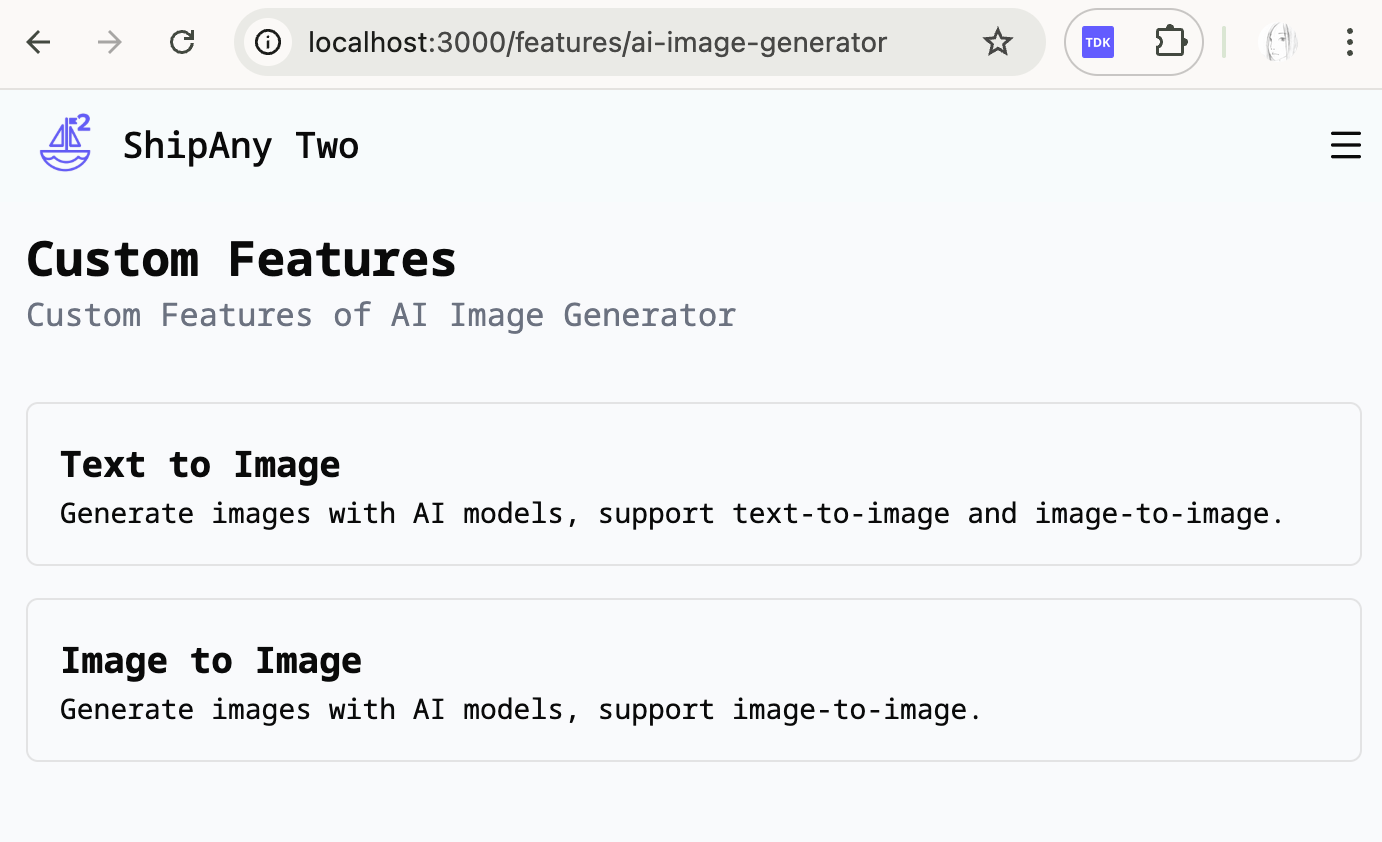
You can use AI to modify the code of custom blocks to achieve more expressive UI effects.