
Neon
Neon is an open-source PostgreSQL database designed for cloud-native, edge, and serverless scenarios.
ShipAny has Neon integrated. Follow the steps below to get started quickly.
Quick Start
Sign up for a Neon account, open the console, and click New Project to create a project.
Open the database you created in the previous step, click Connect, and copy the connection URL.
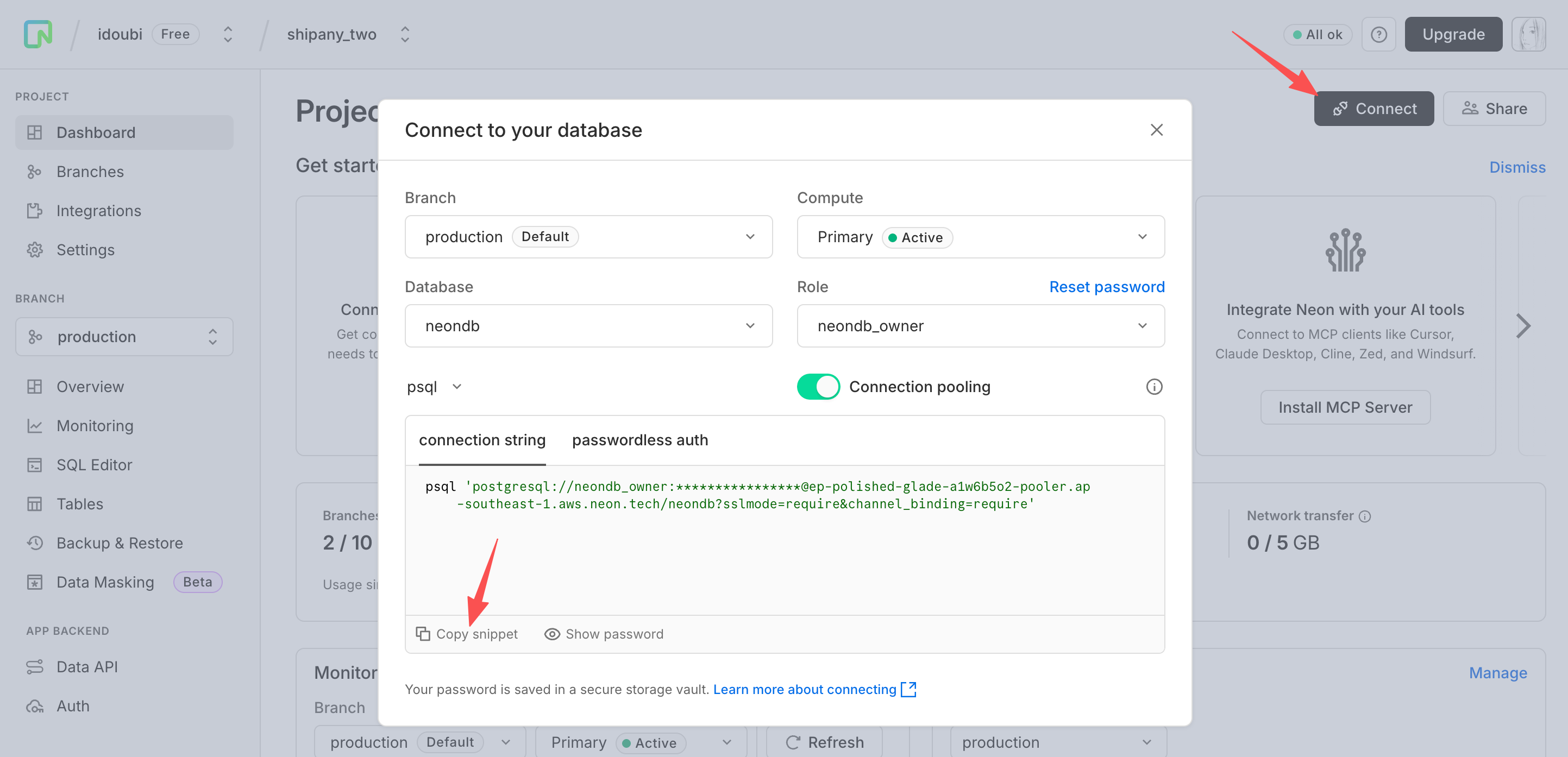
Run the copied command in your terminal to test whether the connection works:
psql 'postgresql://neondb_owner:[email protected]/neondb?sslmode=require&channel_binding=require'The Neon Database URL looks like:
postgresql://neondb_owner:[email protected]/neondb?sslmode=require&channel_binding=requireCopy the Database URL from the previous step.
In your project environment variable files, fill in the Neon database configuration:
- Local development:
.env.development - Production:
.env.production - Cloudflare Workers:
wrangler.toml
DATABASE_PROVIDER = "postgresql"
DATABASE_URL = "neon-database-url"
DB_SCHEMA_FILE = "./src/config/db/schema.postgres.ts"
DB_MIGRATIONS_OUT = "./src/config/db/migrations"- DATABASE_PROVIDER: Required. Fixed value
postgresql - DATABASE_URL: Required. Your Neon
Database URL - DB_SCHEMA_FILE: Required. Fixed value
./src/config/db/schema.postgres.ts - DB_MIGRATIONS_OUT: Optional. Output path for migration files. Default is
./src/config/db/migrations. You can choose different output paths based on database type.
Using Neon database, the data table structure is defined in the ./src/config/db/schema.postgres.ts file, you need to export the data table from this file.
Open ./src/config/db/schema.ts file, modify the content to:
export * from './schema.postgres';Run the following commands to migrate your database tables:
pnpm db:generate
pnpm db:migrateYou can manage your database in the Neon console, or run the following command locally:
pnpm db:studioThis will open the database admin panel.
Customization
Update tables
If you need to add new tables or modify table columns, edit ./src/config/db/schema.postgres.ts to update the schema.
After making changes, run the following commands to generate and apply migrations:
pnpm db:generate
pnpm db:migrate
Update database connection
If you need to adjust connection parameters (e.g., custom options, connection pooling, etc.), update the logic in ./src/core/db/postgres.ts.
By default, data operations use the db() instance exported from ./src/core/db/index.ts. Its return type is any, so in some cases you may not get good type hints.
import { db } from '@/core/db';
import { user } from '@/config/db/schema';

const [result] = await db().select().from(user).limit(1);
If you want a strongly typed database instance, you can use the following approaches when operating on data:
import { dbPostgres } from '@/core/db';
import { user } from '@/config/db/schema';

const [result] = await dbPostgres().select().from(user).limit(1);
Or:
import { getPostgresDb } from '@/core/db/postgres';
import { user } from '@/config/db/schema';

const [result] = await getPostgresDb().select().from(user).limit(1);
Deploy to Cloudflare Workers
Neon works on Cloudflare Workers, and it also supports using Hyperdrive to accelerate database access.
For Hyperdrive configuration, see: Configure Hyperdrive.
Example wrangler.toml snippet for deploying to Cloudflare Workers with Neon:
[[hyperdrive]]
binding = "HYPERDRIVE"
id = "your-hyperdrive-config-id"
localConnectionString = "postgresql://neondb_owner:[email protected]/neondb?sslmode=require&channel_binding=require"

[vars]
DATABASE_PROVIDER = "postgresql"
DATABASE_URL = "postgresql://neondb_owner:[email protected]/neondb?sslmode=require&channel_binding=require"