
Customize Theme
Set Theme Style
In the Quick Start document, initialize the project and start the development server. Open the preview address in the browser, and you can see the default theme page.

ShipAny implements theme style switching based on shadcn/ui. You can choose any shadcn style generator to generate theme styles, customize Theme Colors and Font Effects, and make your website project more personalized.
It is recommended to use tweakcn as the theme style generator.
- Switch preview in the upper left corner of the tweakcn style design panel, and select a theme style you like. Click the
Codebutton in the upper right corner to open theTheme Codepanel.
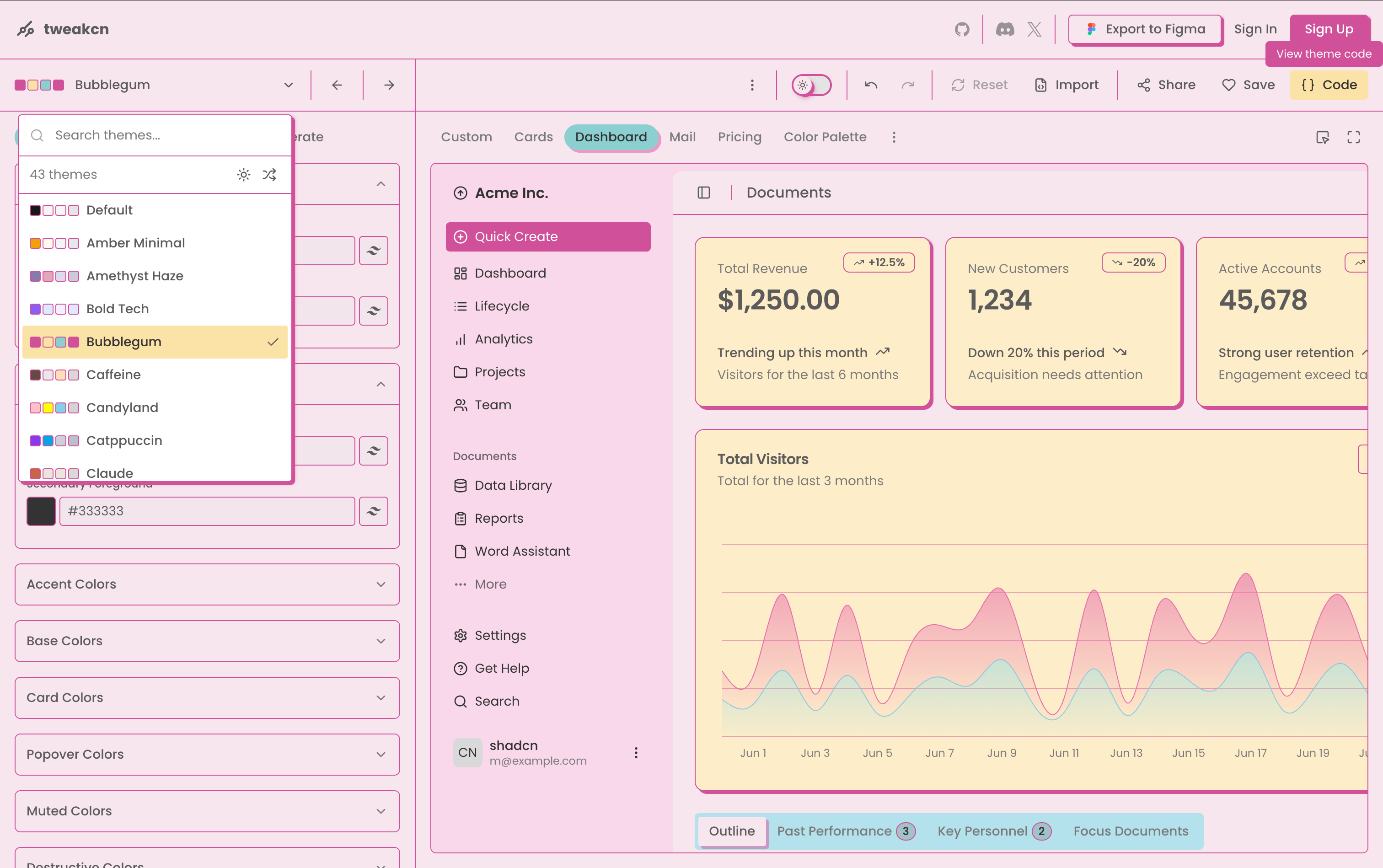
- In the
Theme Codepanel, selectTailwind v4+oklcn, click theCopybutton on the right, and copy the theme style code.

-
Paste the theme style code into the
src/config/style/theme.cssfile of the ShipAny project, replacing the default style code. -
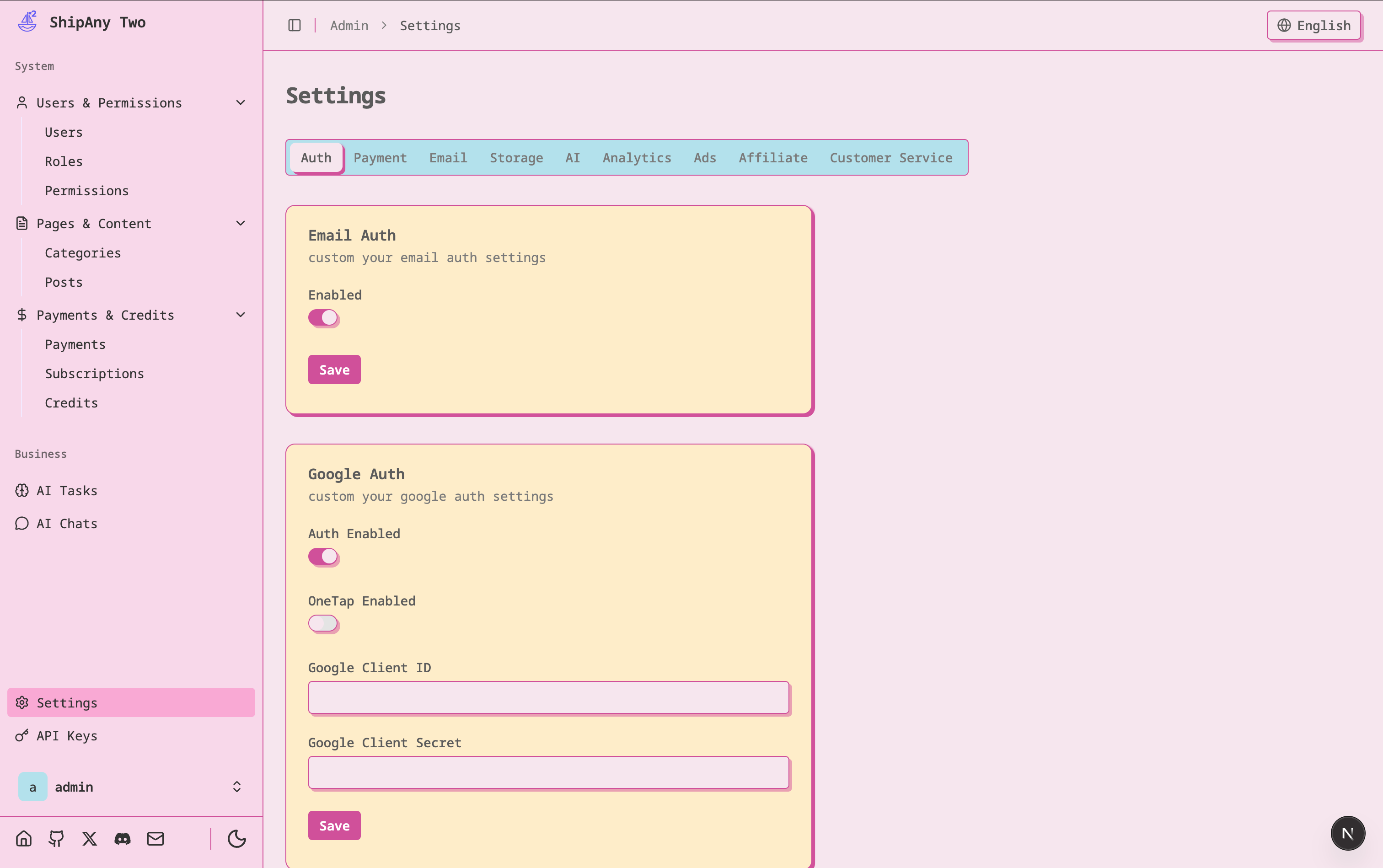
Open the project preview address again, and you can see the new style effect.

The theme style of the admin dashboard is also updated synchronously.
Set Appearance
The ShipAny project uses the NEXT_PUBLIC_APPEARANCE variable in the .env* file to control the default appearance displayed by the project. The default value of this variable is system, which will automatically switch between light or dark mode according to the system theme set by the user's computer.
If you want to display the dark theme by default, you can set
NEXT_PUBLIC_APPEARANCE = "dark"In this way, when users visit your website for the first time, they will see the dark theme.

Set Theme Folder
ShipAny supports a multi-theme system. Based on this, you can customize your own theme to achieve more personalized page effects.
The default theme is implemented based on shadcn + tailark, and the corresponding theme folder is src/themes/default.
Take ShipAny Official Website as an example to demonstrate how to set up a theme folder to achieve a custom theme effect.
- First modify the configuration file to enable the custom theme
NEXT_PUBLIC_THEME = "shipany"- Create a theme folder
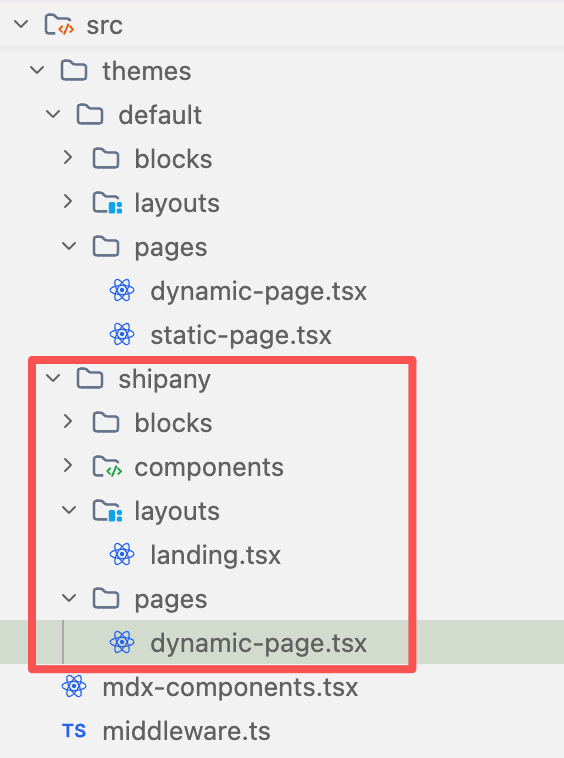
In the src/themes folder, create a theme folder based on the configured custom theme name.
For example, the theme folder to be created here is src/themes/shipany
- Implement theme content
Refer to the theme file content in the src/themes/default folder to implement custom theme file content.
You don't need to completely copy the default theme folder. You only need to create a file with the same name as the default theme folder in the custom theme folder to achieve incremental coverage of the default theme file.
Example of file structure for custom theme shipany.
- Preview custom theme
Visit ShipAny Official Website, you can see the effect of the custom theme.
light mode:

dark mode:

Refer to the above custom theme process, you can choose any UI component library you like, customize your project theme according to your business characteristics, and make your project more high-end and atmospheric.
Recommended popular component libraries: