
Adsense
ShipAny integrates Adsense as an advertising service provider. You can easily set it up with simple configuration.
Quick Start
Follow the steps below to quickly integrate Adsense advertising service into your project.
Visit the Adsense website and register an account.
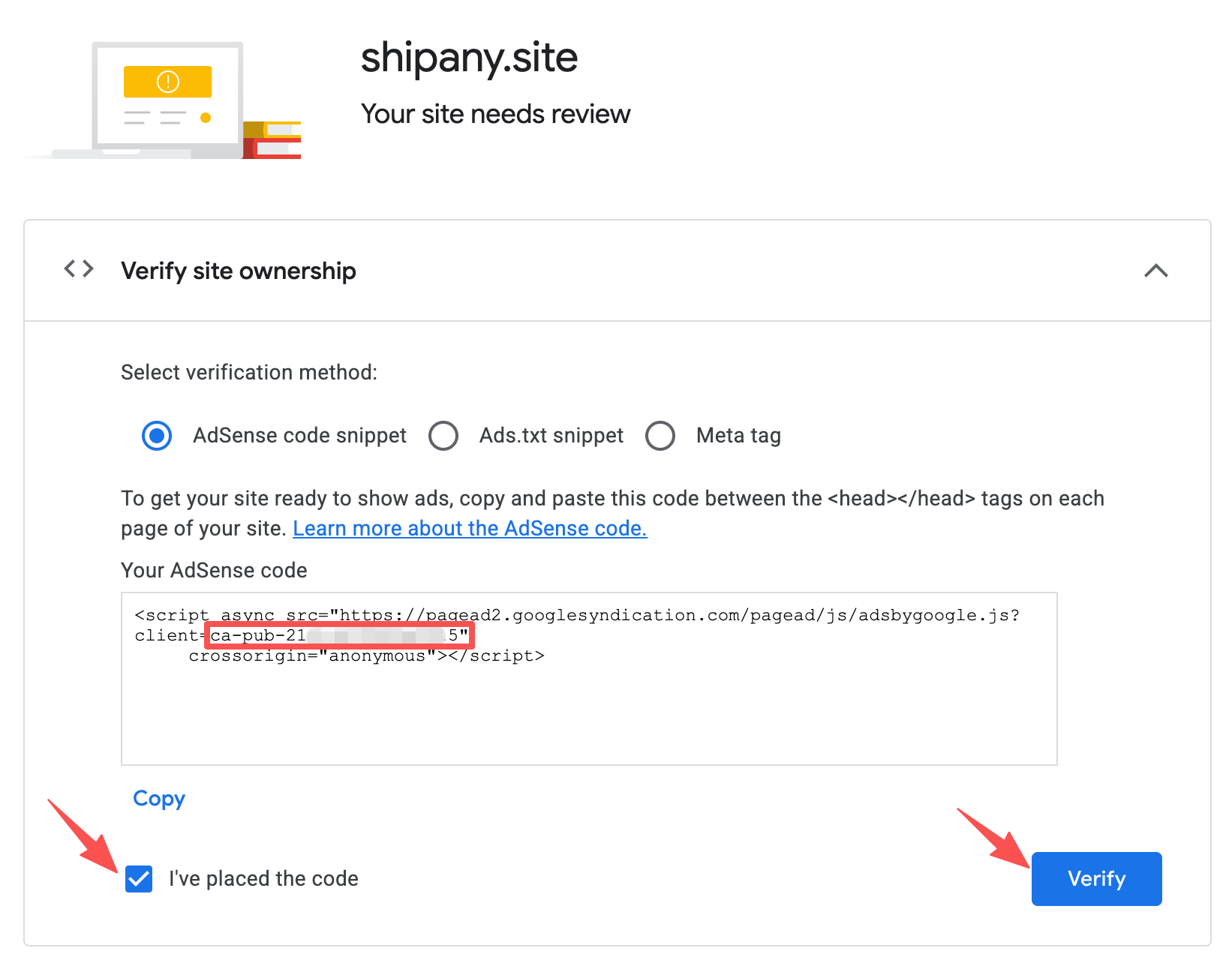
In the Adsense console, go to the Sites page, click the New site button, enter your website domain (e.g., shipany.site) in the Add site popup, and click the Save button to add the site.
On the verification page, copy the code in the format ca-pub-xxx.
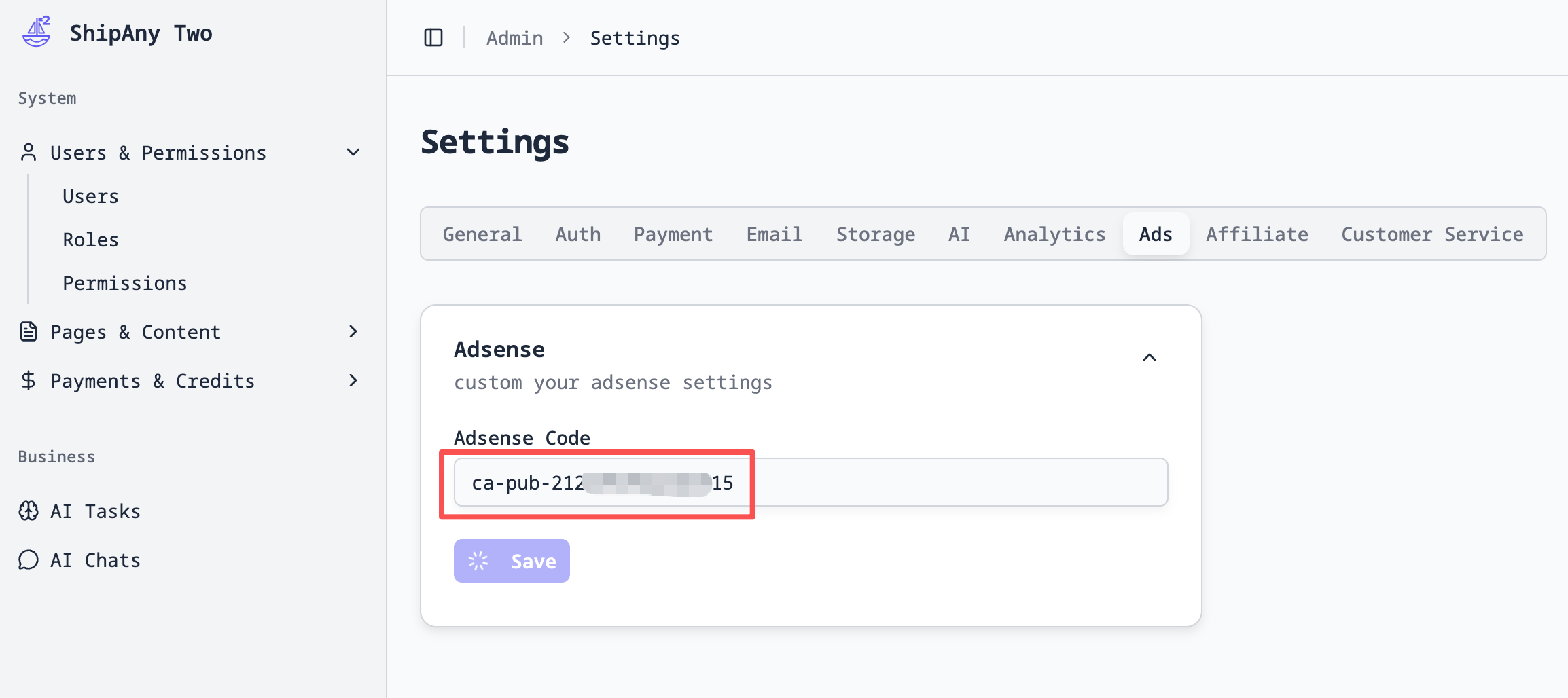
In the project management backend, go to the Settings -> Ads -> Adsense panel, and paste the code copied in the previous step into the Adsense Code field.
Return to the website verification page in the Adsense console from step 2, check the I've placed the code option, and click the Verify button to complete the website verification.
If verification fails with the
AdSense code snippet, try switching toAds.txt snippetorMeta tagmethods. Visit{your-domain}/ads.txtdirectly and check if the output content matches the content in theAds.txt snippet.